Keeping your Samsung Galaxy device updated is important for smooth performance and app compatibility. Many users regularly install Android and One UI updates but forget about another important update: the Google Play System Update on Samsung Galaxy devices.
Samsung provides two different ways to find and install this update. Both methods are simple and take only a few minutes. The menu names may vary slightly depending on your Galaxy model and mobile carrier.
Here is how you can check for and install the update on your phone or tablet.
Why Is the Google Play System Update Important?
Google Play system software supports important Android features that many apps depend on. Samsung explains that several apps rely on this software to work properly.
If you regularly update your phone but ignore Google Play system updates, some important software components may not be as current as they could be.
It is also worth remembering that this update is separate from your regular Android and One UI updates. Installing one does not automatically mean the others are installed.
Method 1: Update Through About Phone
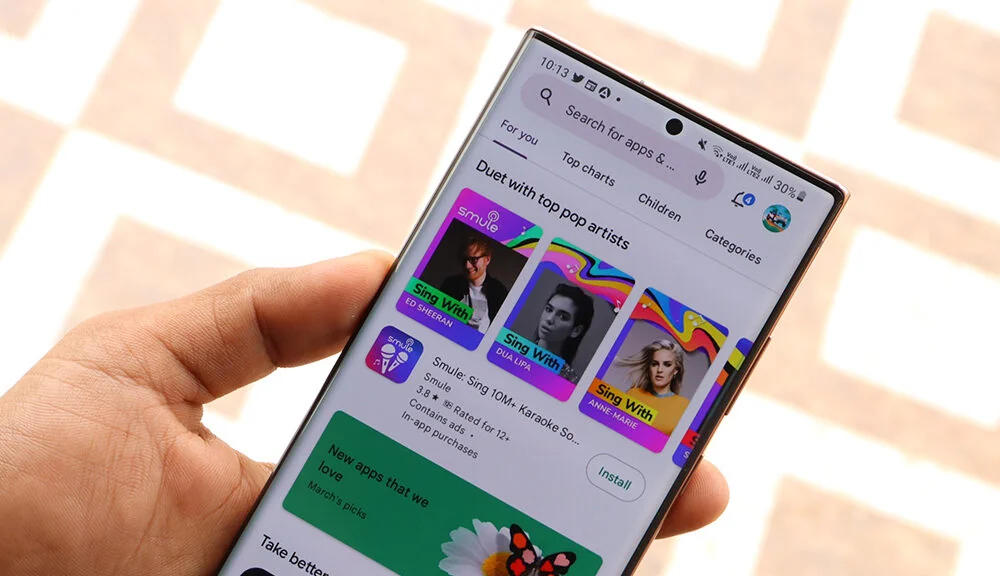
The first method uses the Software Information section in your Galaxy device’s settings.
Follow these steps:
- Open the Settings app on your Samsung Galaxy device.
- Scroll down and select About phone. On a tablet, choose About tablet.
- Tap Software information.
- Find and select Google Play system update.
- Follow the instructions displayed on your screen.
Your device will check for an available update. If an update is available, follow the prompts to install it.
This method is useful if you already visit the Software Information section to check your Android or One UI version.
Method 2: Update Through Security and Privacy
Samsung also provides another route through the Security and Privacy settings.
Here is how to use it:
- Open Settings.
- Select Security and privacy.
- Tap Updates.
- Choose Google Play system update.
- Press Download & install.
Your Galaxy device will begin the update process if a newer version is available. You may need to restart your phone to complete the installation. If prompted, select Restart now.
Both Samsung Update Methods Compared
You can use either route to reach the Google Play system update option. Choose whichever is easier to find on your device.
| Feature | Method 1 | Method 2 |
|---|---|---|
| Starting menu | About phone/tablet | Security and privacy |
| Next step | Software information | Updates |
| Final option | Google Play system update | Download & install |
| Best for | Checking software details | Finding security-related updates |
What If You Cannot Find the Update Option?
Do not worry if your Settings menu looks slightly different. Samsung notes that menu names and paths can vary depending on the device model and carrier.
You can also try searching for Google Play System Update using the search bar inside Settings. This can help you locate the option without manually checking every menu.
However, the search method is a community tip rather than one of the two officially documented routes.
Final Thoughts
The Google Play System Update on Samsung Galaxy devices is a small but important part of keeping your phone’s software current. Samsung confirms two simple ways to access it, so users can choose the method that matches their device’s menu.
Checking this update occasionally is a useful maintenance habit. Just remember that Google Play system updates, Android updates, and One UI updates are separate, so it is worth checking each one when needed.